 IMPORTANT
From the monitoring & alerts window you can remotely define new alerts, modify existing alerts or remove alerts. New alerts can be created from scratch or by duplicating and editing an existing alert. Alerts can be disabled to temporarily switch them off.
IMPORTANT
Alerts - not only server alerts, but also viewer alerts - can only be managed on your PADS4 Server. The functions for managing alerts are NOT available in the monitoring & alerts window of a PADS4 Viewer.
When defining an alert there is a distinction between server alerts and viewer alerts. When you define an alert that needs to be processed by your connected PADS4 Server, then the definition is automatically forwarded to the right PADS4 Server where it is locally stored. Viewer alert definitions are also automatically forwarded to the right PADS4 Server, but the PADS4 Server in its turn forwards the task to the right PADS4 Viewer where it is locally stored. This automatic forwarding system ensures that your items will be monitored, even when the system is temporarily offline.
Click New Alert on the Home menu.

Select the type of alert you want to define and click Next to continue.
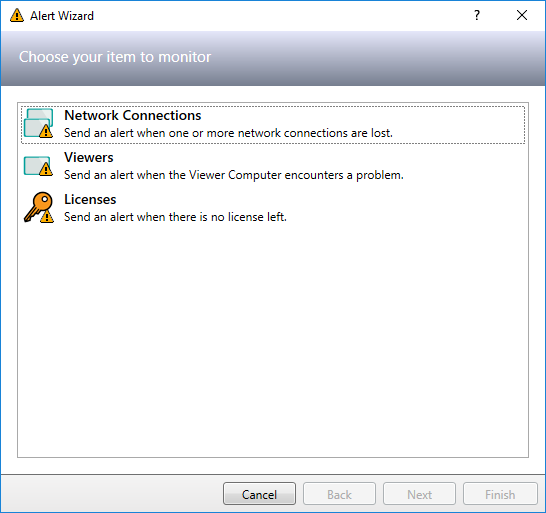
You can choose between the following items to monitor:
| Item | Description |
| Network connections |
Your PADS4 Server monitors its connected sub servers and PADS4 Viewers. |
| Viewers |
The system monitors various aspects of a PADS4 Viewer, like available disk space or memory usage. |
| Licenses |
The system monitors the availability of PADS4 licenses. Currently, only PADS4 Desktop Viewer licenses are monitored. |
Follow the pages of the wizard with specific instructions for the item you have chosen to monitor.
For a detailed explanation of these pages, see the individual descriptions per alert type (or click the links in the table above).
Specify the users to be notified when an alert is raised.
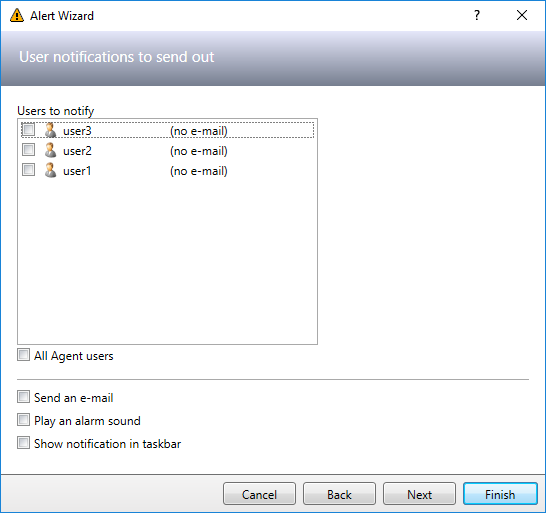
Users to notify
Select all individual users you want to be notified. You can choose all users that have been defined in the PADS4 System Management application.
All Agent users
When you select this option, then automatically all users that have a valid PADS4 Agent license will be notified. Changes to the license assignment in PADS4 System Management will automatically be taken over.
Send an e-mail
Automatically send an e-mail to the selected users.This option requires that a valid e-mail address has been specified for each of the selected users.
Plan an alarm sound
Automatically plays a sound on your PC when the PADS4 Agent application is running at the moment that the alert is raised.
The sound to play can be specified on the Alerts tab of the application options window.
Show notification in taskbar
Automatically shows a popup message in the Windows system tray on your PC when the PADS4 Agent application is running at the moment that the alert is raised.
Specify the servers to be notified when an alert is raised.
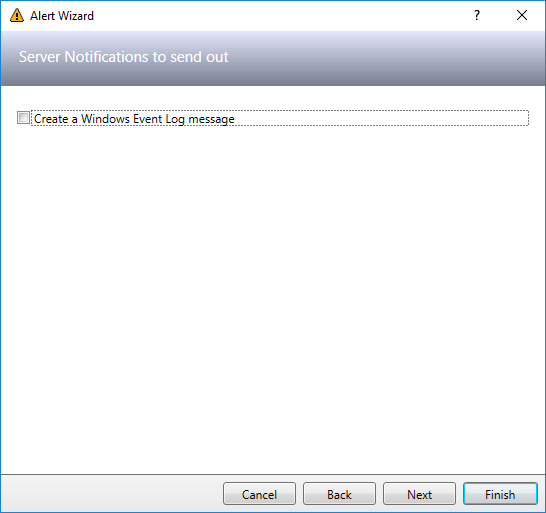
Servers to notify
(Only available when you have a system with multiple PADS4 Servers) Select all PADS4 Server you want to be notified.
Create a Windows Event Log message
A log entry will be written to the Windows application log when the alert is raised.
Specify any additional options and click Next to continue.
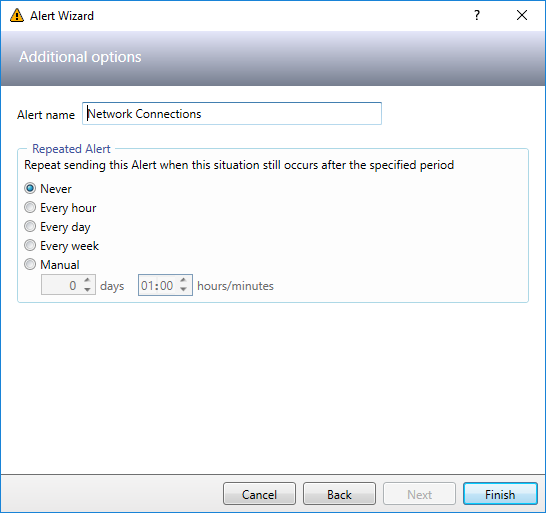
Alert name
A descriptive name to identify the alert.
Repeated Alert
Gives you the possibility to determine how often you want to be notified about the same problem as long as it has not been resolved.
Click Finish to complete the wizard.
After this your alert definition will be created and forwarded to your PADS4 Server or PADS4 Viewer where it is locally stored.
Click the alert definition in the monitoring & alerts window to select it.
Click Duplicate on the Home menu.

After this an exact copy of the alert definition will be created and forwarded to your PADS4 Server or PADS4 Viewer where it is locally stored.
IMPORTANT
When you have created a duplicated task you always have to edit the duplicated alert. Otherwise you will have to identical monitoring processes generating identical alerts, which makes no sense.
Click the alert definition in the monitoring & alerts window to select it.
Click Edit on the Home menu.

After finishing the wizard the updated alert definition will be forwarded to your PADS4 Server or PADS4 Viewer where it is locally stored.
Click the alert definition in the monitoring & alerts window to select it.
Click Delete on the Home menu.

After this your alert definition including all generated alerts will be removed from your PADS4 Server or PADS4 Viewer.
Click the alert definition in the monitoring & alerts window to select it.
The Enabled column of the alert definition must have the value 'Yes'.
Click Disable on the Home menu.

After this your alert definition will be disabled on your PADS4 Server or PADS4 Viewer to prevent further execution of the monitoring process.
To enable the alert again you must select the alert definition again and click Enable on the Home menu.
Click the generated alert in the bottom part of the monitoring & alerts window to select it.
Click Pending or Resolved on the Home menu to manually change the status.
Manually changing the status of an alert to resolved prevents that new alerts will be generated for the same problem.